
Announcements ·
Toca 10: your workspaces now run on Git
Version 10 replaces the Draft, Published and Previous states with branches, commits and remote repositories. It also brings passkeys, a rebuilt app explorer, flexible table views and retention periods.
Version 10 of Toca is out, and the headline is version control. The Draft, Published and Previous states have gone, and so have project and app import and export. In their place is Git: branches, commits, history and remote repositories, built into every workspace.
There is a good deal more in the release (it goes by the name Odin), but that is the change that alters how you work, so it comes first.
Versioning is now Git
Versioning in Toca 10 works like Git because it is Git. If you already use Git, most of what follows will be familiar. If you do not, the platform walks you through it the first time you sign in.
Branches
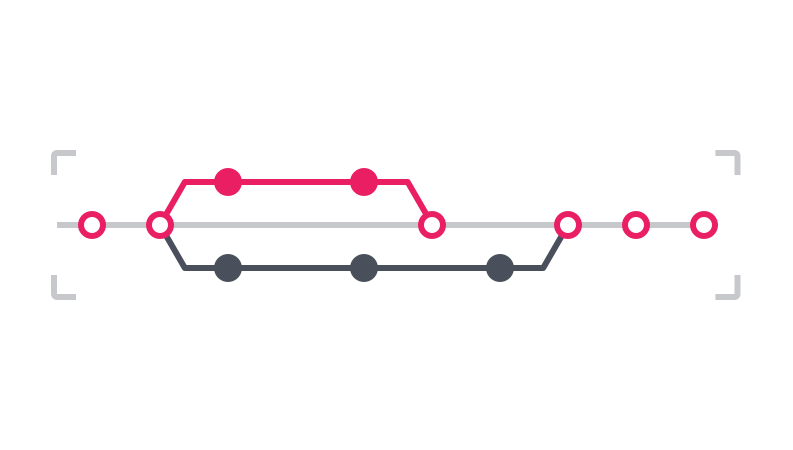
A workspace now has branches instead of three fixed states. Call them what you like and keep as many as you need: a change on one branch never touches another.
main is the default and plays the part that Published used to. From there it is your call: a single dev branch, a branch for each feature, or a branch for each developer. You can compare branches, create new ones, merge them, and delete them when you are finished.
Almost everything in a workspace is versioned: projects, activities, workflows, schedules, apps and app pages.
Commits and history
Changes are tracked as you make them. When you are happy with them, open the version control panel in the sidebar, review what has changed and commit it with a message. If you are not, discard the changes and everything goes back to its last committed state. A commit can hold one change or many, whatever makes sense.
The History option in the branch menu lists every commit, which gives you a full audit trail of who changed what and when, and a snapshot to go back to if you need one.
Remote repositories
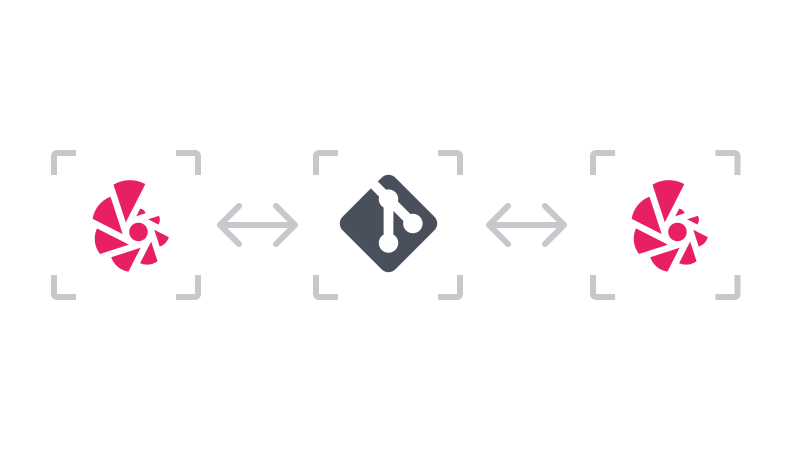
This may be the most useful part. Connect a workspace to a Git host such as GitHub and you can clone it to other Toca environments with no import or export.
If you run separate development and production environments, build and test on one, push to the remote repository, then pull onto production. What runs in production is exactly what you validated. The remote is also a backup of your workspace on a server outside Toca.
Your data stays put
Table rows and the files in your file drive are not versioned, although a table’s configuration (its columns and indexes) is. That means you can reshape a table on one branch without disturbing the data on another.
When you do want the data to move, the new data transfer tool syncs table data and files between two branches. It is offered when you create a branch that contains a datastore, it is always there in the workspace menu, and it lets you choose what happens to files that already exist.
If you are already on Toca
Four things have changed under your existing work. None of them needs action on day one, but the second is worth checking.
- Your workspaces have been migrated. Draft resources are now on a branch called
dev, Published resources are onmain, and Previous resources are onlegacy. - Workflow reports now expire. Every workflow has a retention period, after which its reporting data is cleaned up so that it does not quietly fill your disk. The default is 30 days. If you need a workflow’s reports for longer, change the period in that workflow’s settings.
- Export and import have been replaced. Project and app export and import are deprecated in favour of workspace version control and the data export and import tools.
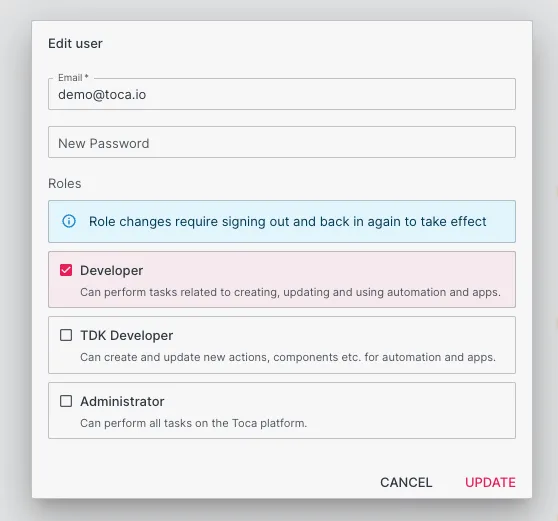
- Roles are simpler. There are now three: Developer, TDK Developer and Administrator. Every user has been moved to the new roles automatically, and Developer covers everything needed to build automation and apps, so there is no longer a reason to make everyone an administrator.
A new layout to go with it
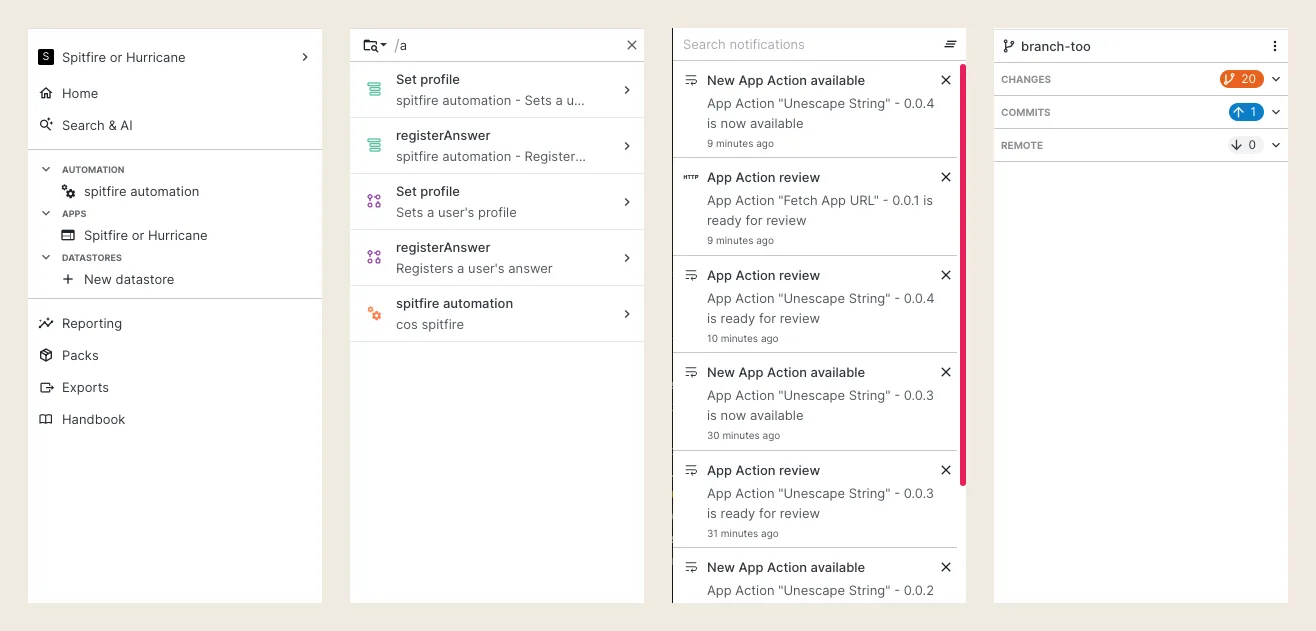
A control bar now runs along the bottom of every screen. On the left are the controls for the sidebar and for versioning; on the right is the version information for whatever you are looking at.

The sidebar has become the hub of the platform. It holds the main navigation, platform search, documentation search, notifications and version control, and you switch between them from the bottom bar or with keyboard shortcuts.
Also in version 10
A rebuilt app explorer
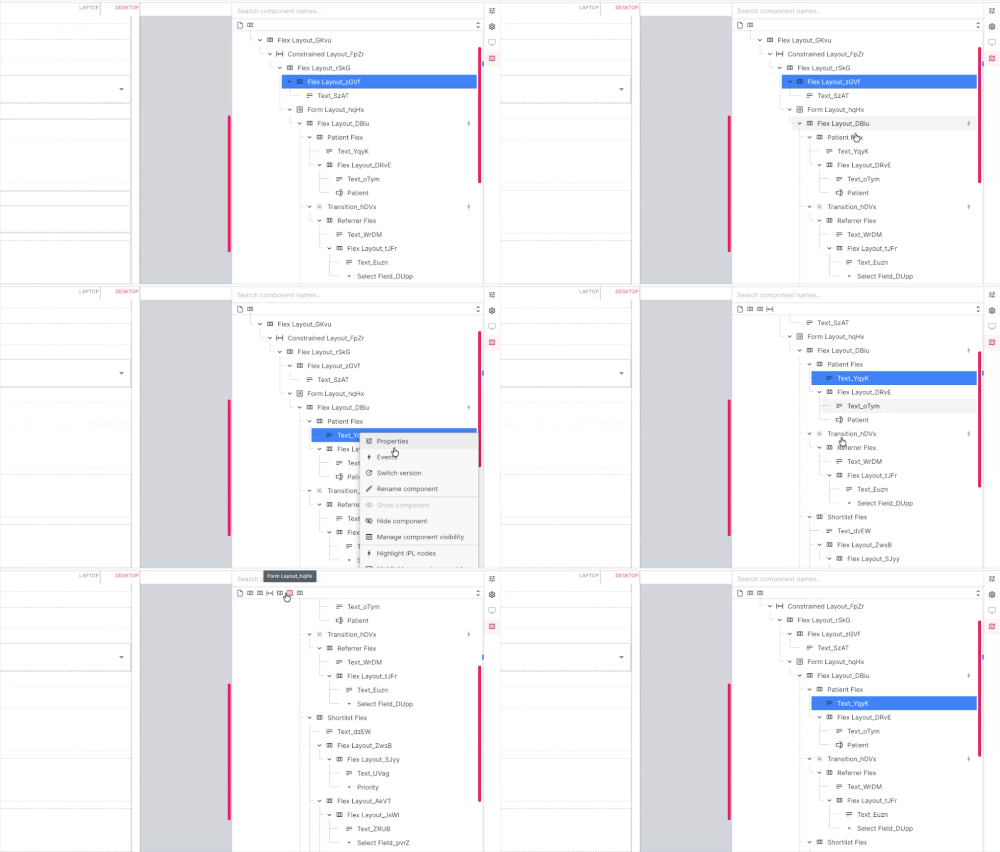
The explorer panel in the app designer has been redesigned, with component search, better performance on larger pages, a highlight strip and a right click menu. There is enough new in it that it has its own introduction, shown the next time you open the app designer.
Passkeys

You can now sign in to Toca with a passkey: a passwordless method that uses a fingerprint, a PIN or whatever else your browser and device provide. Administrators turn passkeys on from the Security page in Admin, and can require them or offer them alongside passwords and single sign-on. Each user registers their own in the Passkeys area of their profile.
Flexible table views
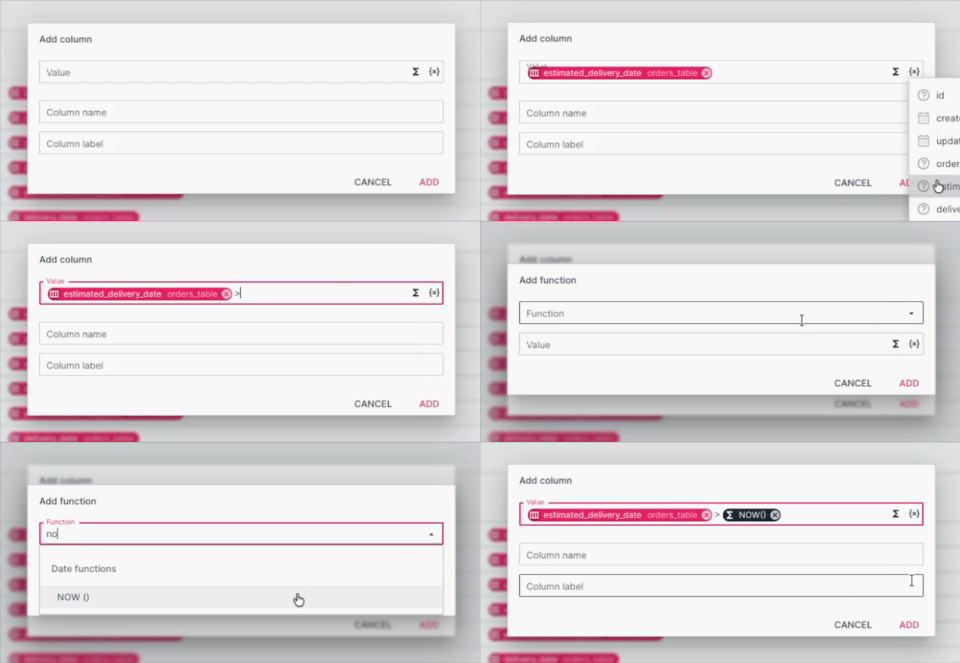
Table views now take free-form inputs: columns, functions and free text combined in a single input, in whatever order suits. They work for new columns, for function arguments, and for the Group By and Having fields, so more of the shaping can happen in the view and less in your automation and apps. Views can also be sorted and queried from the datastore page in the same way as ordinary tables.
Smaller things you will notice
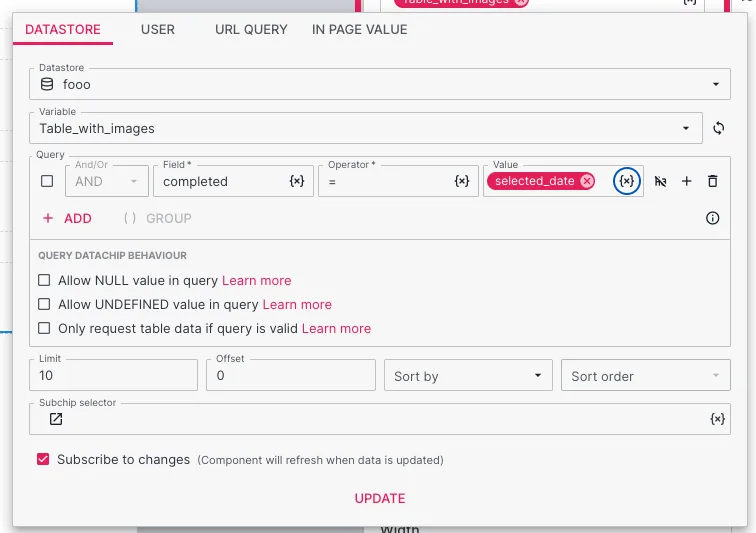
Querying for null. Choose IS or IS NOT in the query builder and you can set the value to null. Table cells that contain null are easier to spot, and in apps you decide what a table request does when a datachip resolves to null or undefined.
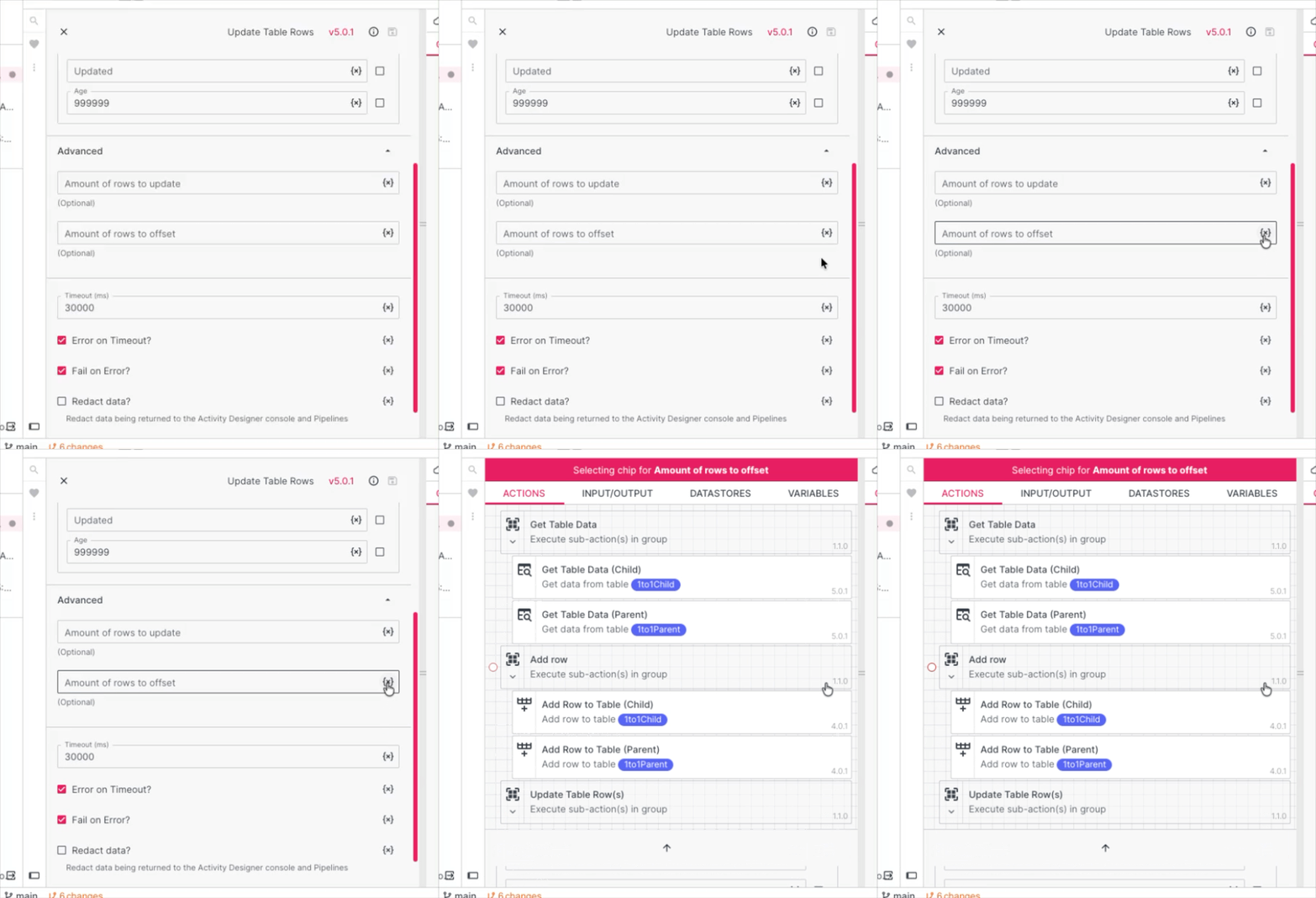
Field names on datachips. When you select a datachip in the activity designer, you can see the name of the field you are selecting it for.
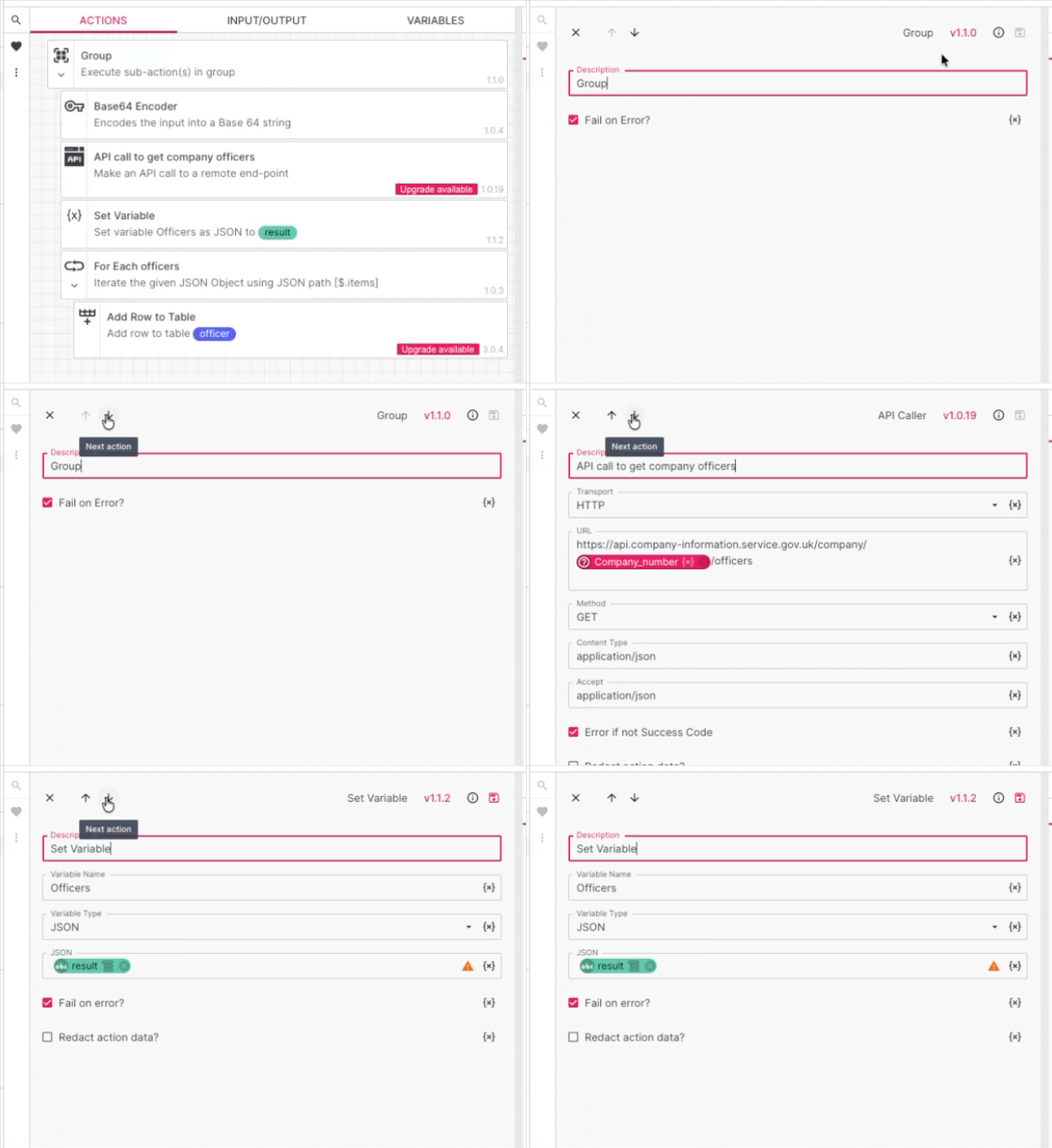
Moving between actions. In the activity designer you can switch between open actions without closing the one you are in.
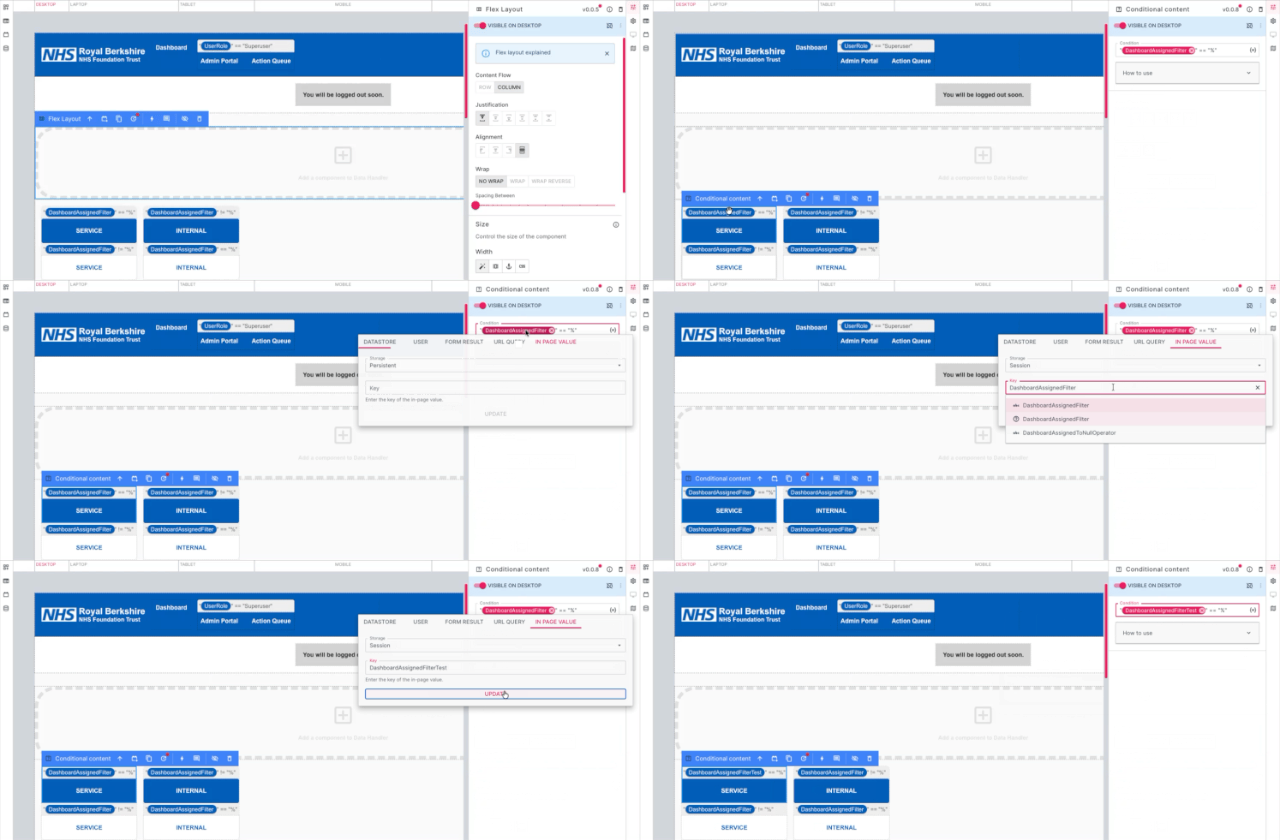
Editable datachips in apps. Click a datachip in the app designer to reopen its panel, check how it is configured, and edit or replace it.
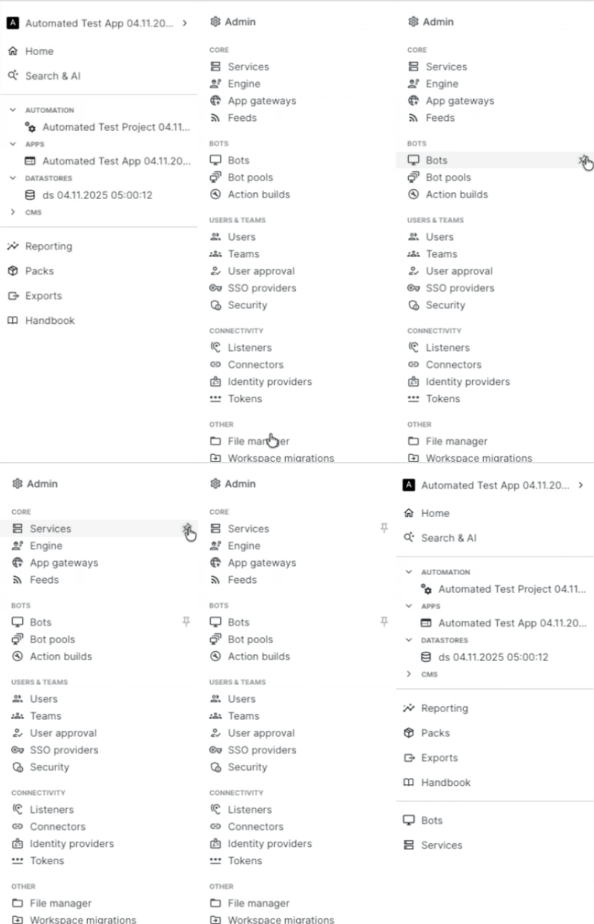
Pinned admin pages. Pin the admin pages you use most, such as Bots or Users, to the main navigation. Look for the pin icon beside each page in Admin.
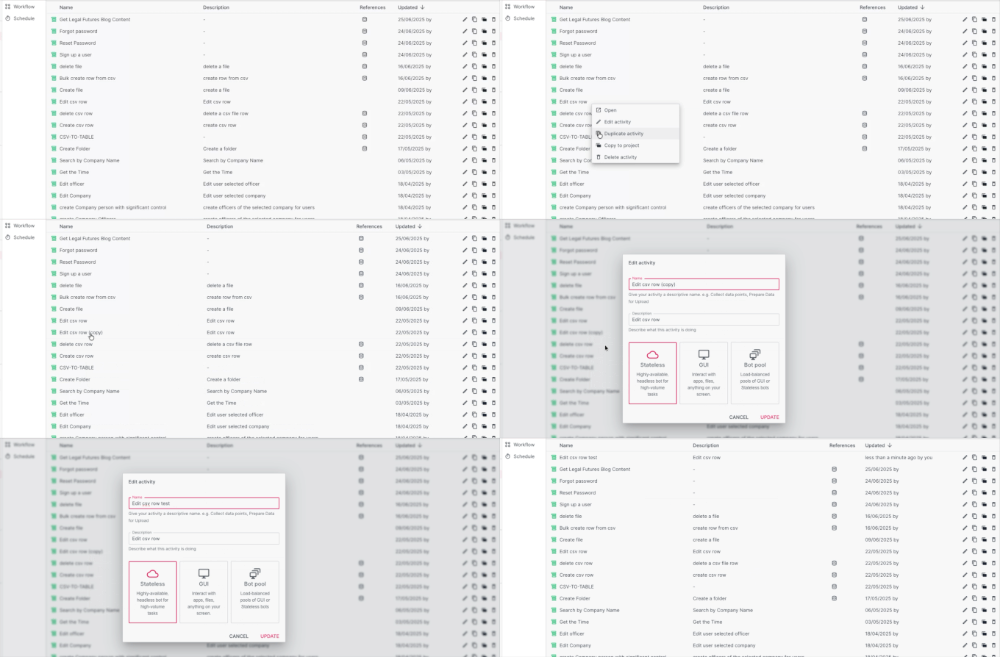
Right click menus. Right click on most lists to get the row actions. Try it on your activities, on the app explorer, and on the Automation header in the navigation.
See it for yourself
The first time you sign in to version 10, Toca takes you through all of this step by step. You can replay that tour whenever you like from your profile, under Misc.
The full release notes and the versioning guide are on Toca Vault. A number of bug fixes are included across the platform too: for the full list, email support@toca.io.
Happy building.
Published on news.toca.io, 10 November 2026. Shown on toca.io.